How To
License:
Java:
ZLT Install:
TWS:
ZLT Usage:
How to report problem?
Visit our bug tracking (BT) system at
www.zerolinetrader.com/bt and
report the issue
with following information:
1. The description of the problem and detail steps to duplicate the
problem if the problem can be duplicated.
Following information will be very
helpful:
- The time when the problem occurred
- Did the problem happen when
initiate a new position, add to long/short position, partially close
long/short position?
- Individual account or Financial Advisor account?
2. The log file. The log file can be found in {ZLT
Install Directory}\user\log, e.g.,
C:\ZLT\user\log. The log file name is
zlt.log.
Sometime, the ZLT development may request the zipped 'user'
folder. Please follow these steps:
- Install a zip utility if there isn't one on your system yet. There
are free zip utilities, as listed in the
Trading Utilities forum.
- Browse to the 'user' folder which is
at {ZLT
Install Directory}\user, by default,
C:\ZLT\user.
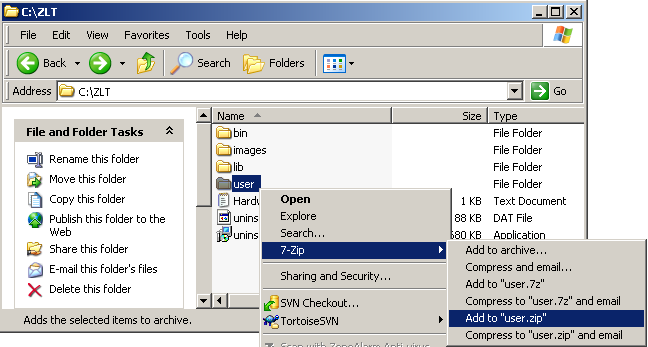
- Right click on the user and zip the
folder to user.zip file with your zip
utility. The following screen shot shows how to do it with the 7-Zip
utility:
- The user folder is zipped into a
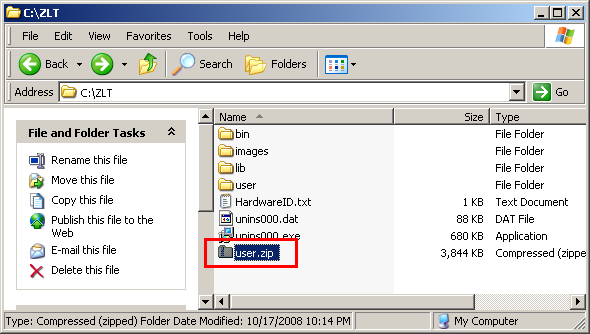
file called user.zip as shown:
- Email the user.zip file as an email
attachment to the ZLT support.
How to connect to IB's TWS ?
1. Start IB's TWS. (If you do not have an account with IB, you can still
run the TWS software and then login in
as demo user.)
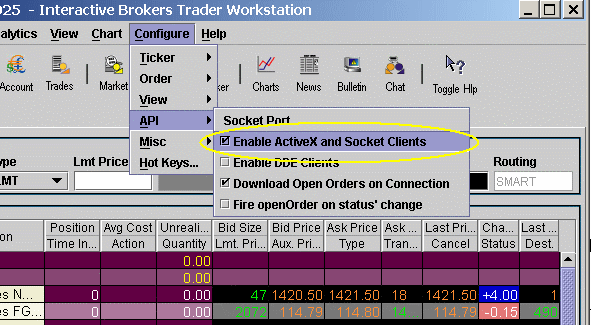
2. Make sure the Enable ActiveX and Socket
Clients is checked as shown in the figure.
3. Start ZeroLine Trader or ZeroLine SimTrader.
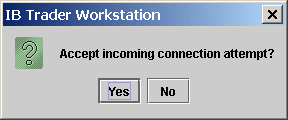
4. Find the TWS's connection dialog and click Yes.
How to login to IB's
Demo TWS?
For Demo Individual Account:
User Name:edemo
Password:demouser
For Demo Financial Advisor Account:
User Name:fdemo
Password:demouser
Just run TWS as usual and login with above user name and password.
The quote in demo account is delayed and no historical data there either.
How to add a new
instrument instantly in the ZLT main window?
- Make
sure the Instrument/Order
Reason
column is shown in the main window.
-
Double click the Instrument
cell in an empty row.
- Type
the string IBM-STK-SMART-USD
in the cell and hit the
Enter
key.
- Now
you can trade the
IBM-STK-SMART-USD.
The syntax
of the instrument string is Symbol-SecType-Exchange-Currency.
Note: For stocks, you can just type the symbol, for example, just
IBM.
How to add a new instrument (i.e., stock, futures contract, currency
contract or options contract) ?
If the instrument you want to trade is not listed in the main window, check if
it is listed in the Data Server. If not, follow the steps to add it:
- Select Configure -> Components
... from the menu bar of the ZLT main window.
- In Components dialog, select the
instrument type, for example Futures,
in the left panel.
- Right click on the instrument table on the right panel, for example the
Futures table, and select
New.
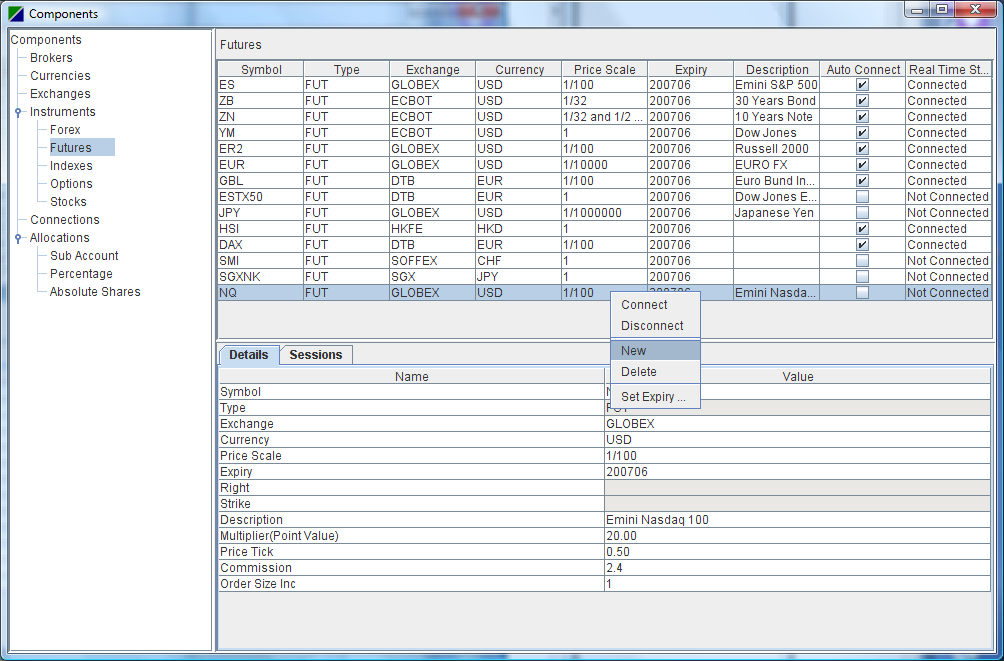
- Notice a new instrument is created with default values
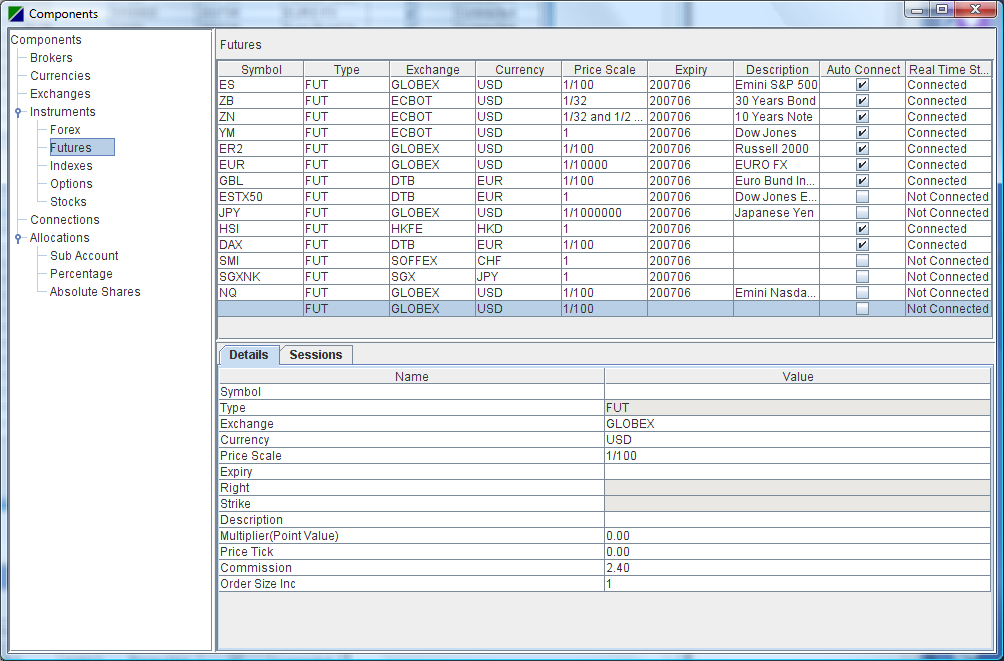
- Define the instrument parameters in the
Details tab.
- Define the sessions in the Sessions
tab. You can right click on the sessions table and select
Load default sessions.
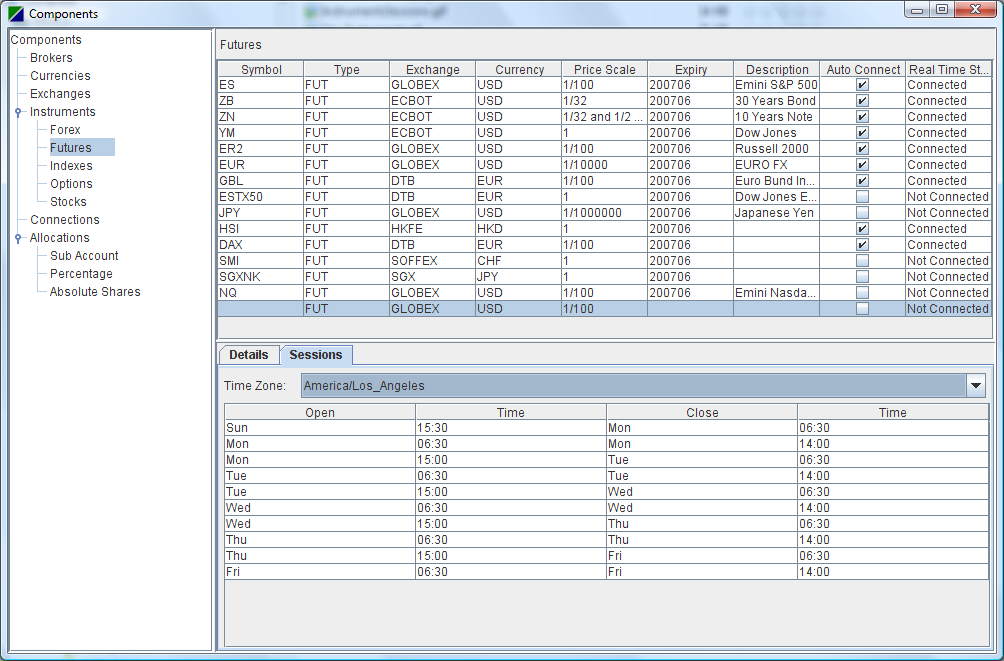
Following is the step to add an instrument into the ZLT main window.
- Now go back to the main window. Right click on an empty row and select
Select
Instrument.
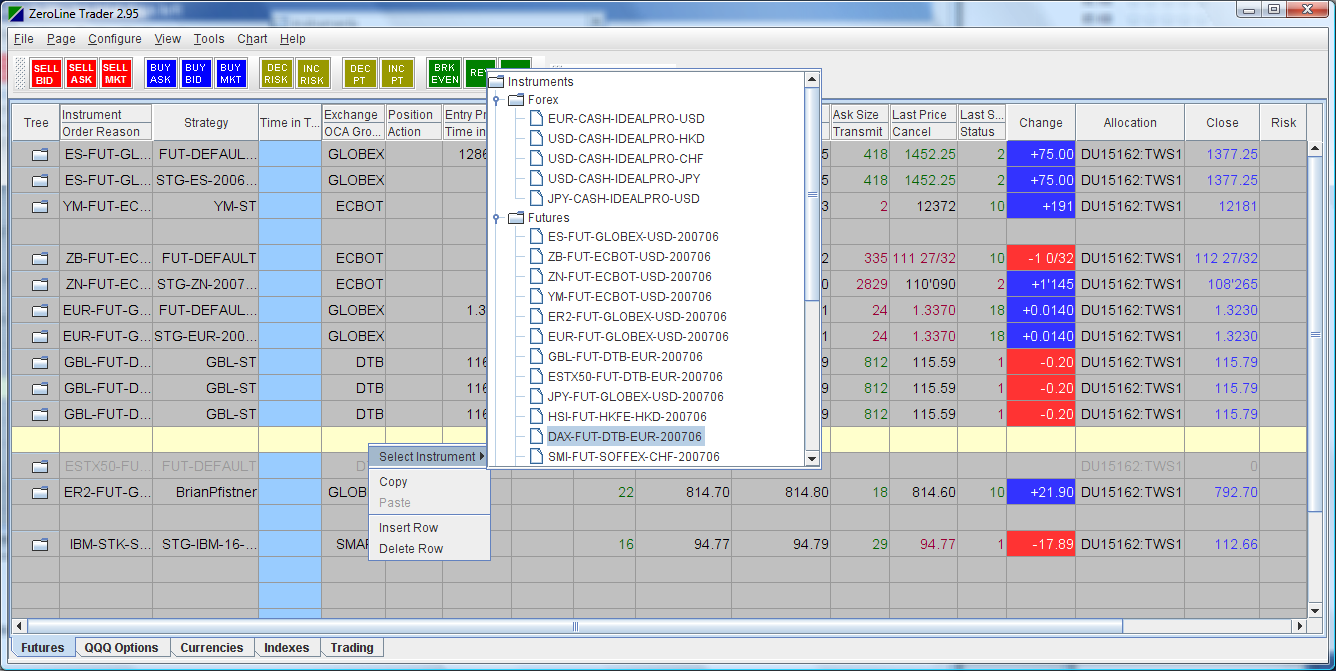
Note: Multiple data rows can be inserted for one instrument and each
data row can have different trading
strategy.
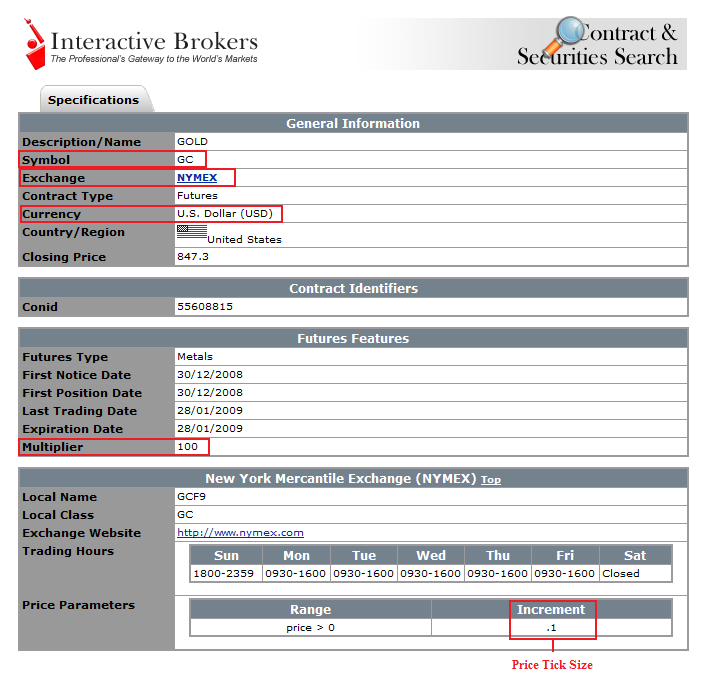
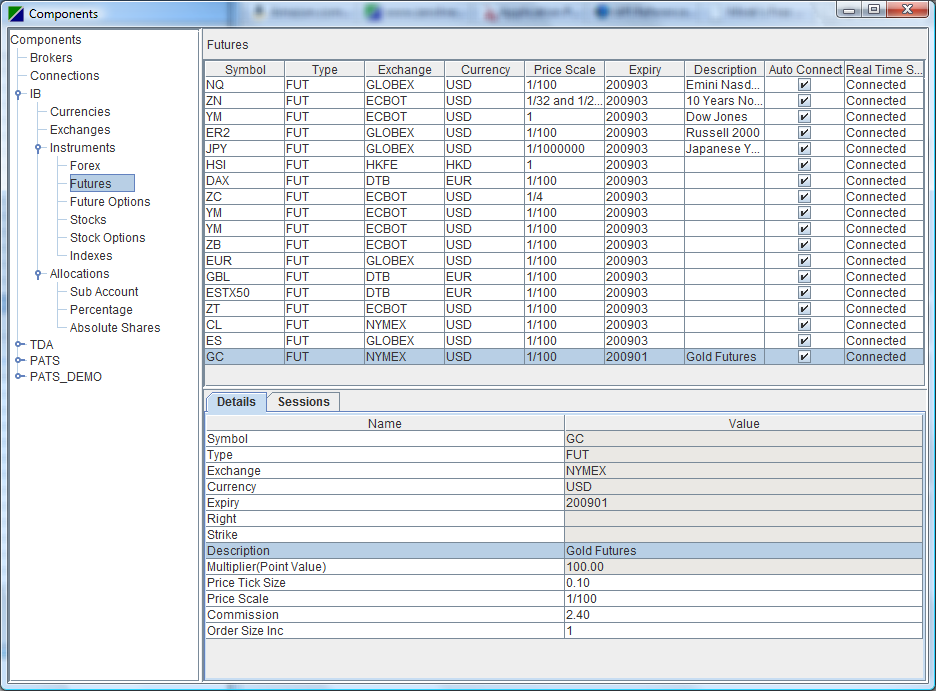
How to find instrument
attributes, such as Price
Scale, Multiplier (Point Value) and
Price Tick Size?
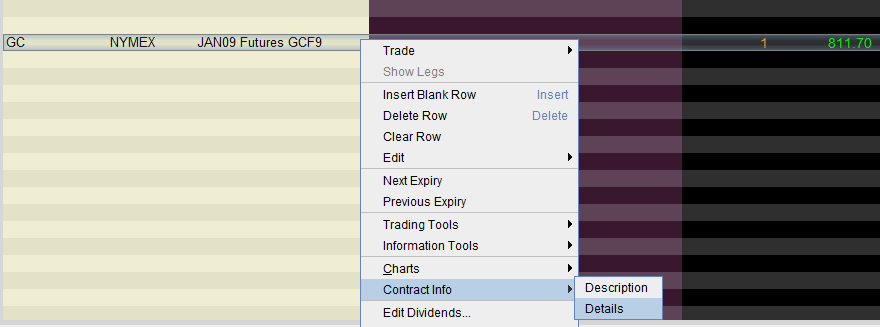
Following are the detailed steps on how to find those attributes for
Gold futures (GC on NYMEX).
- Add the GC instrument into TWS.
- In TWS, right click on the GC row. Select Contract
Info and then Details.
- The contract details information will be listed in a web
page:
- Here is how GC is defined in ZLT:
How to create a new layout?
- Open the page whose layout will be the basis for the new layout.
- Select Page->Save Layout As and enter the new layout name.
- Click the "Save Layout As" button. A new layout file with the
given name will be created under the directory
{APP_HOME}\user\layouts\.
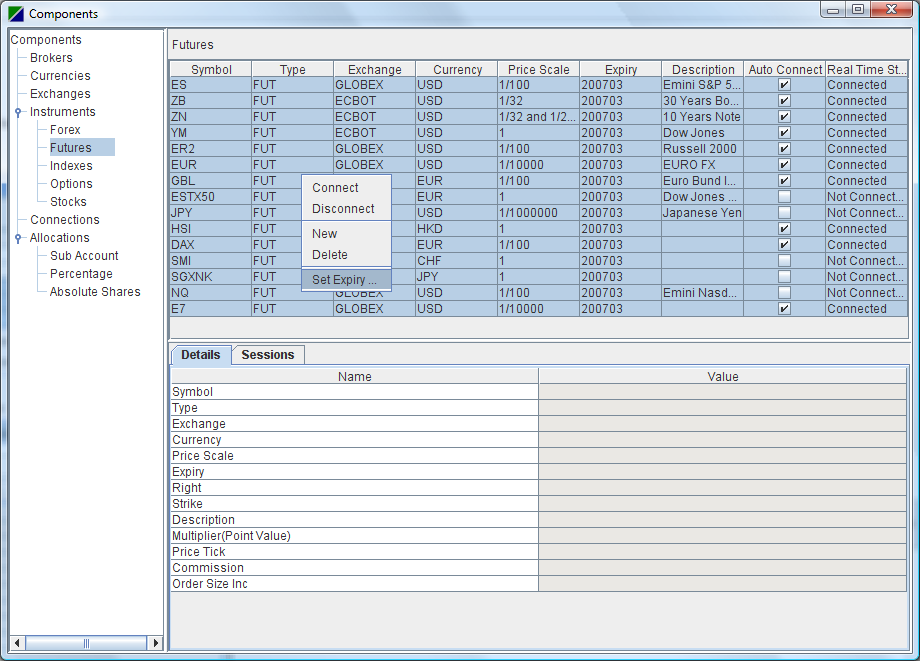
How to rollover an instrument?
For futures or commodity instruments,
- In the main window's menu bar, select
Configure->Components ... to open the
Components window.
Select one or multiple instruments and the select
Set Expiry...:
- The Set Expiry dialog pops up.
Type in the new expiry, for example,
200706.
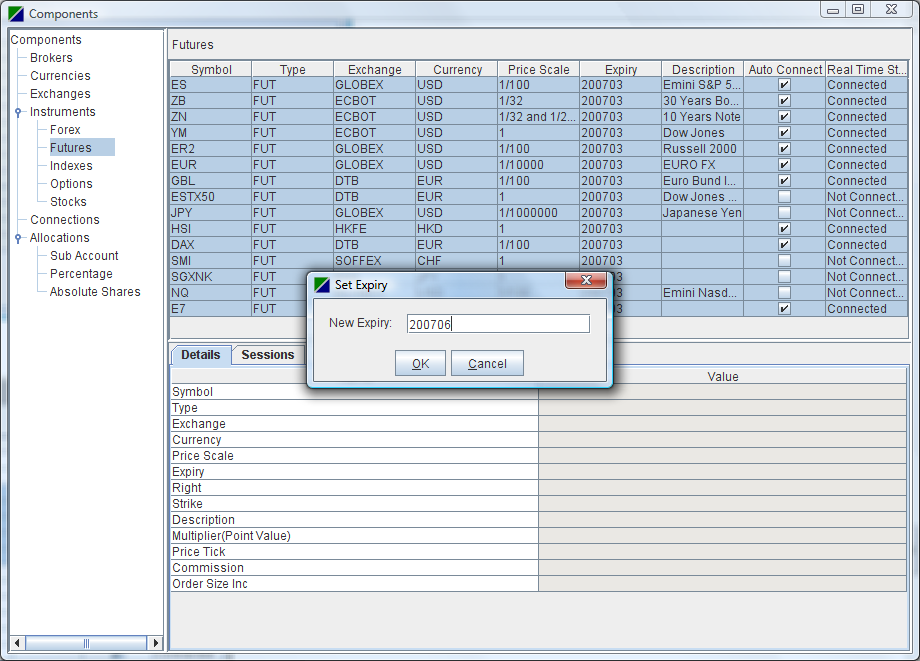
- Note the expiry fields of the selected instruments are set to
the new expiry:
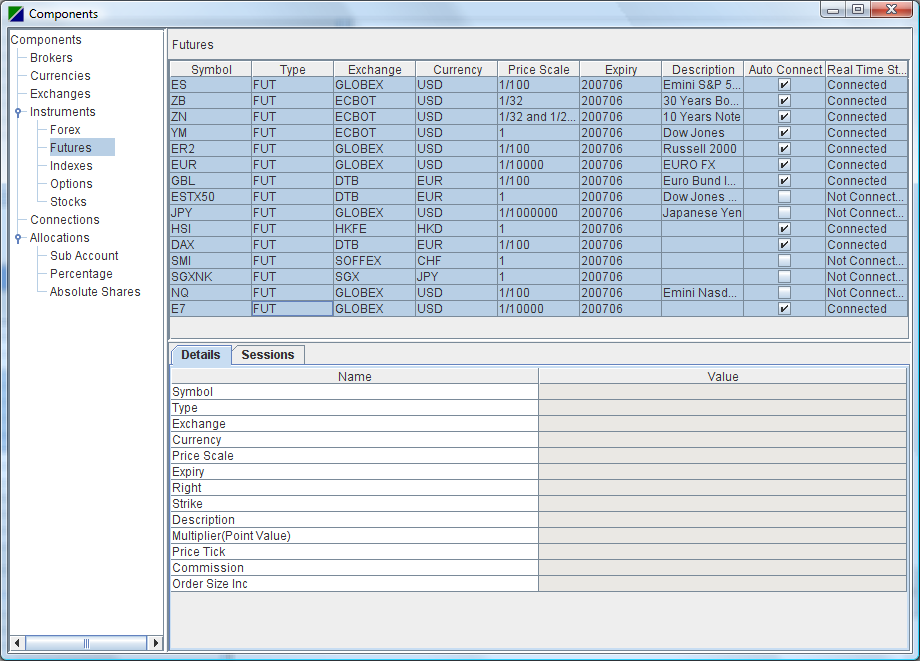
Note: If there are data lines in the main window that are based on this
instrument, those data lines will be automatically updated to reflex the new
expiry.
How to
import/export instrument(s)?
- In the main window's menu bar, select Configure->Components ... to open the
Components window.
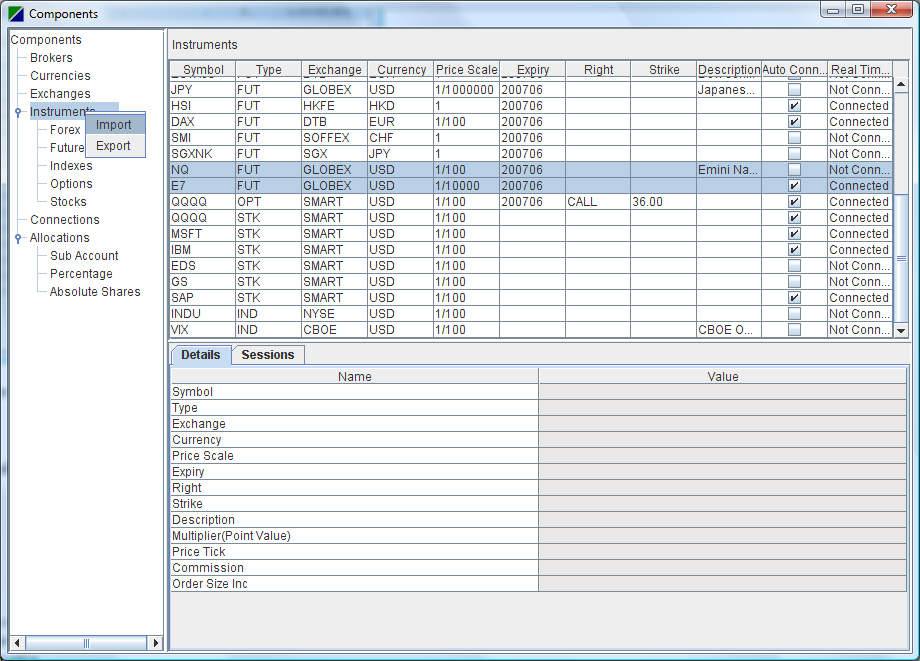
- Right click on the Instruments node in
the Components tree, select
Import or Export
menu item to import or export all the instruments in ZLT.
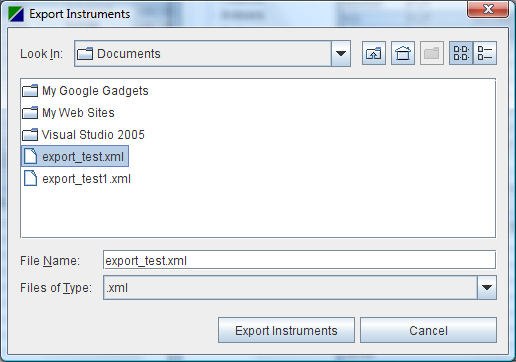
If Export menu item is selected, the
Export Instruments dialog pops up. Select an XML
file where the instruments will be exported to. ZLT will overwrite the existing
file. To export to a new file, just type the new file name in the
File Name field.
If the Import menu item is selected, the
Import Instruments dialog pops up. Select an XML
file that is generated by ZLT exporting instruments.
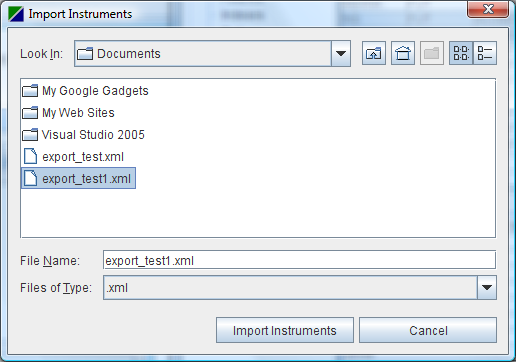
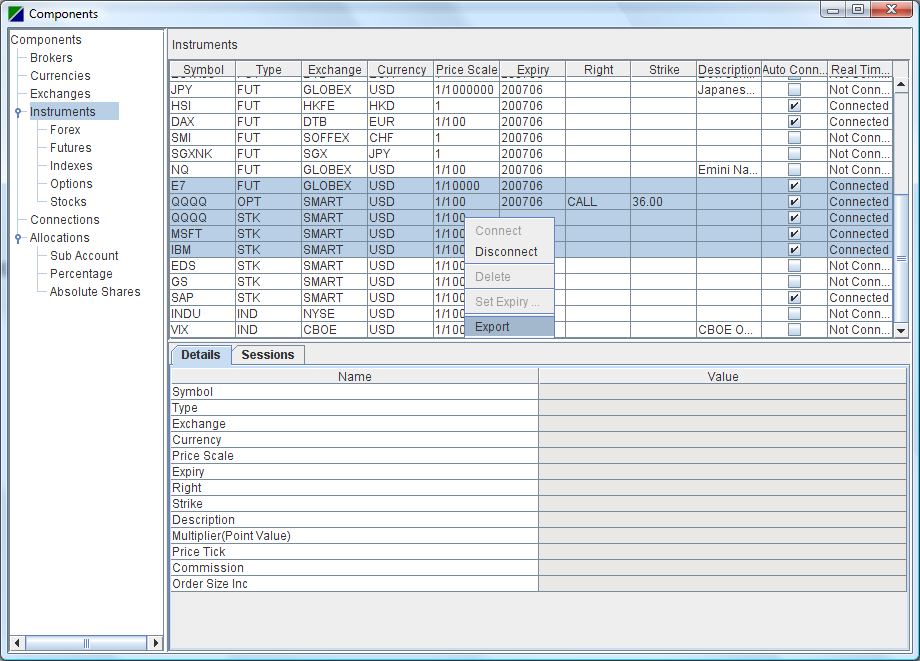
Instead of exporting all the instruments, the user can also export
only the selected instruments. In the
Instruments table, right click on the selected instruments and then
select Export.
How to trade in sim mode?
ZLT offers the capability to trade live and sim at the same time. There
is no need to switching modes. To trade in Sim mode, just select an
Allocation
Profile that allocates the orders to a sim account. See doc
here for
details on allocation profile.
How to modify an order?
There are five ways to modify an order:
- Move the mouse over the lmt price cell, the aux price cell or the
quantity cell and scroll the mouse wheel.
- Move the mouse over the "T" (Transmit) cell and scroll the
mouse wheel. This is the way to modify the price and transmit the order
without moving the mouse around.
- Use Shortcuts. For example, press F1 to decrease the lmt price and F2 to
increase the lmt price.
- Double click the price/size cell and then scroll the mouse wheel.
- Double click the price/size cell and type in the new value.
How to export executions to csv file?
Please refer to execution export
documentation.
How to set position to zero in a
data line?
In certain cases, you may want to set the position to zero in a data line
so the program will stop tracking it.
Just move the cursor over the position cell and scroll the mouse wheel to
bring the number to zero. Or you can double click the position cell and edit
the number by keyboard.
How to find the HardwareID.txt file?
1. Download and install the latest ZLT.
2. Run ZLT at least once.
3. The hardware ID file is at {INSTALL
DIRECTORY}\HardwareID({COMPUTER_NAME}).txt, for
example,
- On 64-bit Windows
C:\ZLT_x64\HardwareID(TradeMachine).txt, where
TradeMachine is the computer name.
- On 32-bit Windows C:\ZLT_win32\HardwareID(TradeMachine).txt,
where TradeMachine is the computer name.
- On Mac
/Users/{your_user_name}/ZLT-V3.88.app/Contents/java/HardwareID(Traders-MacBook-Pro).txt,
where Traders-MacBook-Pro is the
computer name. You need to right click on the
ZLT-V3.88.app and select
Show Package Contents.
- On 64-bit Ubuntu
/home/{your_user_name}/ZLT-V3.88/HardwareID(Traders-Ubuntu).txt, where
Traders-Ubuntu is the computer name.
How to install the license file?
If you received .license file,
just save the file in the ZLT license folder. By default, the license folder
is at
C:\ZLT_x64\license or
C:\ZLT_win32\license on Windows,
/Users/<your_user_name>/ZLT-V3.73/license on Mac
/home/<your_user_name>/ZLT-V3.73/license
on Ubuntu.
How to open
and save the license file if it is disabled in the Outlook Express?nse file if it is disabled in the Outlook Express?
If you cannot open the license file attachment and you are using Outlook
Express, please follow the directions below.
1. In Outlook Express, on the Tools menu,
click Options.
2. Click the Security tab.
3. Under Virus Protection, clear the
Do not allow attachments to be saved or opened that
could potentially be a virus check box.
4. Click OK to save your changes.
After you have opened and saved the license file, you must reset this
security option.
How to check
Java version number?
- Click Start->Control Panel->Java
to open the Java Control Panel dialog:
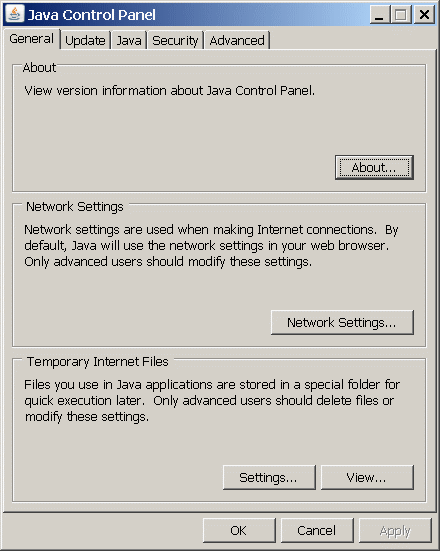
- Click the About ... button:
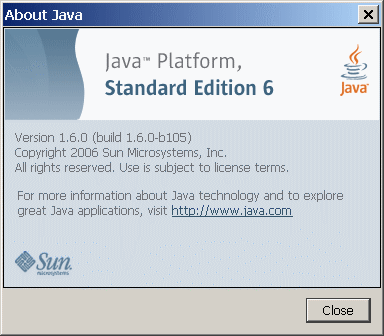
- The Java version here is : Version
1.6.0 (build 1.6.0-b105)
How to check if the JRE is properly installed?
The simplest way to fix the "JRE not found" error is to download
and re-install the latest JRE for J2SE from java.sun.com
or www.java.com.
If you are interested in finding out why the JRE is not found, follow the
following steps and check if the jvm.dll exists on your system in the specific
location.
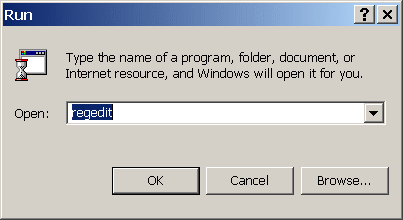
- Run regedit : Click on
Start, select
Run..., type
regedit in the Run dialog and click
OK.
- In Registry Editor window, find and click the node
My Computer->HKEY_LOCAL_MACHINE->SOFTWARE->JavaSoft->Java
Runtime Environment.
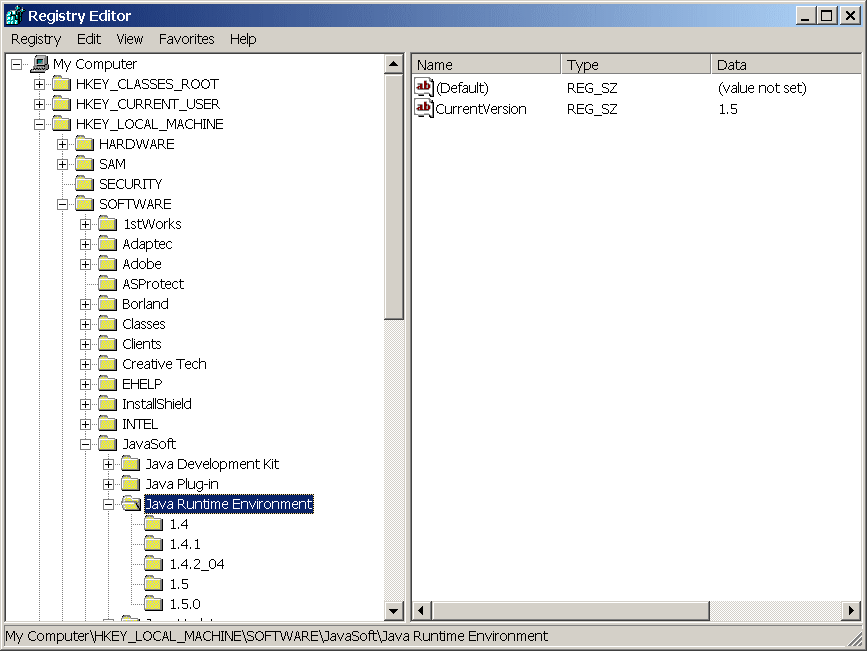
3. Note the version number for CurrentVersion in the right
pane. It is 1.5 in the above screen shot.
4. Click the node whose name is the same as the
CurrentVersion, 1.5 as in this
example.
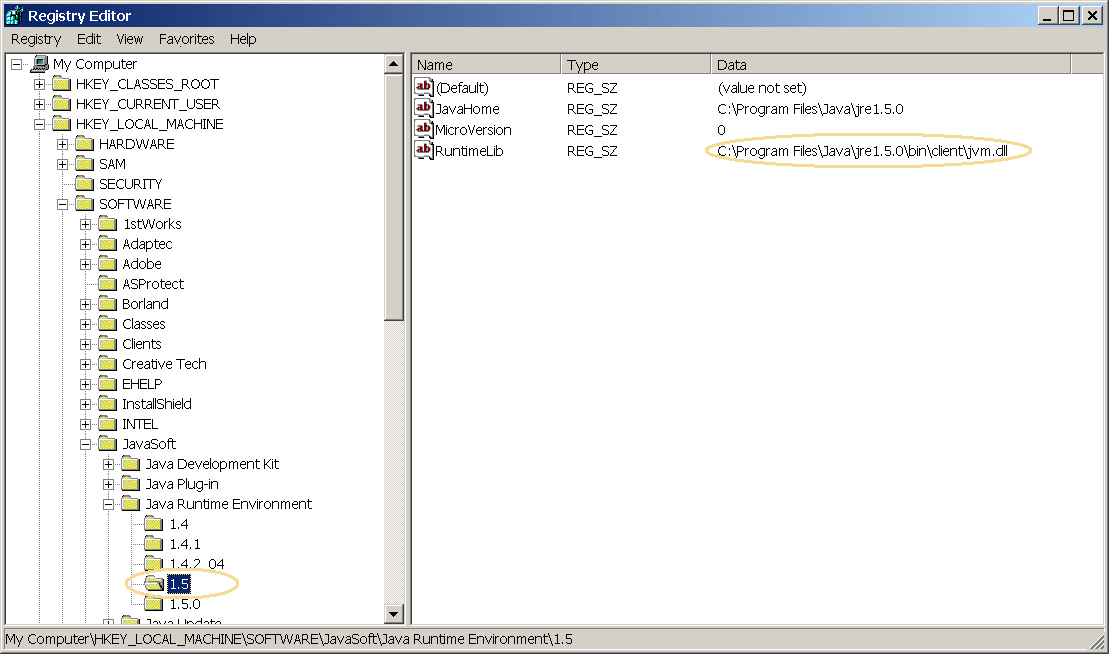
5. In the right side panel, note the value for
RuntimeLib. In
this case, it is C:\Program
Files\Java\jre1.5.0\bin\client\jvm.dll.
6. Check if the C:\Program
Files\Java\jre1.5.0\bin\client\jvm.dll exists
on your system. If not, reinstall the JRE.
How to download and install the latest JRE?
- Visit
http://www.oracle.com/technetwork/java/javase/downloads.
- Find the latest JRE, for example, Java SE 7u21 and click the
JRE
Download button.
You may want to read the "Installation
Instructions" under the Download button.
- Check the Accept License Agreement radio button
- Select a download link for your OS (Mac
OS X x64, Windows x64, Windows x86, Linux x64).
On Mac or Unix, just delete the ZLT folder, then download and unzip the
latest ZLT build.
On Windows,
- Uninstall the existing ZLT through
the Add/Remove Programs in
Control Panel.
- Delete the ZLT folder, such as,
C:\ZLT_x64 or C:\ZLT_win32.
- Download the
latest installer.
- Run the installer.
How to install and run ZLT on Mac OS X?
ZLT is tested on Mac OS X V10.8.3.
- Download the ZLT-<version>-mac.zip file at
www.zerolinetrader.com/download.
- Save the .zip file, for example, at your user folder,
/Users/<your_user_name>/.
- Double click on the .zip to
unzip and the ZLT application package will be created, for example,
/Users/<your_name_name>/ZLT-V3.88.app.
- Right click on /Users/<your_name_name>/ZLT-V3.88.app
and select Open to launch ZLT.
- For older MacOS, click Open button in the
"unidentified developer" dialog. The "unidentified developer" dialog
pops up when an application which is not from Apple's App Store is
opened the first time. After the first time, double-click will open the
application.
- For MacOS Sequoia or later, see
https://support.apple.com/guide/mac-help/open-a-mac-app-from-an-unknown-developer-mh40616/15.0/mac/15.0.
- You can also drag and drop the file
ZLT-3.88.app to the dock.
To install license file,
- Right click on ZLT-V3.88.app
and select Show Package Contents.
- Navigate to folder /Users/<your_name_name>/ZLT-V3.88.app/Contents/java/license
- Place your ZLT license file under this
license folder.
Similarly, you can find the hardware id file under folder
/Users/<your_name_name>/ZLT-V3.88.app/Contents/java
and ZLT log file under folder /Users/<your_name_name>/ZLT-V3.88.app/Contents/java/user/log.
ZLT is tested on Ubuntu 10.10 64-bit version with Java 6 Update 24.
- Download the Ubuntu archive file at www.zerolinetrader.com/download
- Un-archive the file to your user folder. For example /user/<your_user_name>/ZLT-V3.73.
- Go to the bin folder, for example,
/user/<your_user_name>/ZLT-V3.73/bin
- Right click on the file ZLT.sh and select
Properties. In the Properties window, check the
checkbox Allow executing file as program.
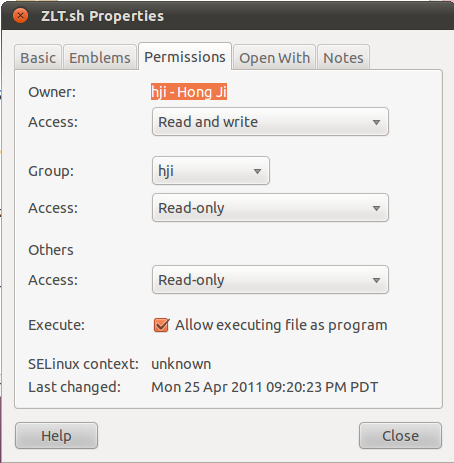
- Double click on the ZLT.sh.
Before downloading and installing 64-bit ZLT build, please check following three
items:
- Your Microsoft Windows operating system is 64-bit. If you are
not sure, just search the web "Is my windows 64 or 32 bit."
- The 64-bit Java Runtime Environment (JRE) is installed on your system.
You can check it by these steps:
- Open a DOS window. Select Start > All
Programs > Accessories > Command
Prompt.
- Enter java -version at the prompt and make sure that
there is a space between "java" and "-version".
This is sample output:
C:\>java -version
java version "1.7.0_17"
Java(TM) SE Runtime Environment (build 1.7.0_17-b02)
Java HotSpot(TM)
64-Bit
Server VM (build 23.7-b01, mixed mode)
- Notice '64-bit' is in the output.
- If you don't have 64-bit Java installed. Just download it from
http://www.oracle.com/technetwork/java/javase/downloads, install it and
repeat the previous steps to verify.
- Download and install
Microsoft Visual C++ 2010 Redistributable Package (x64).
- Download, install and
run the 64-bit ZLT.
On some systems, when you double click on the ZLT desktop shortcut, nothing
happens and ZLT is not launched. Those systems have not been configured to
launch jar file properly. A simple way to fix it is:
- Find out where the JRE is installed on your system. Usually it is at
C:\Program Files\Java\jre6\.
- Right click on the ZLT desktop shortcut and select
Properties.
- In the Properties window, select the
Shortcut tab.
- Under the Shortcut tab, there are the
Target and Start in
fields.
- In the Target field, change its content to:
"C:\Program Files\Java\jre6\bin\javaw.exe" -jar
C:\ZLT_x64\bin\JZLT.jar
- The Start in field should stay the same:
C:\ZLT_x64\bin
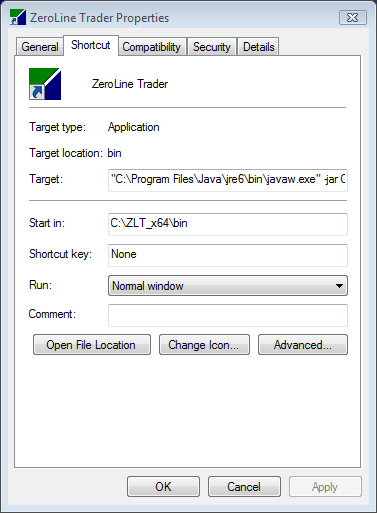
- Click OK to close the
Properties window.
- Double click on the ZLT Desktop shortcut and it should launch ZLT.
Home